
Customizing Your Sidekick Experience

In our latest Sidekick update, we’ve incorporated valuable feedback from our clients to introduce several meaningful enhancements. These changes are not yet supported in all EMRs, but are available in Prompt, WebPT SOAP 1 & 2, Clinicient, and Raintree (Web Version). This guide outlines the new customization settings now available, designed to help you tailor Sidekick to better fit your workflow and preferences. You can change these settings at any time.
To access these settings:
- Click on the Sidekick widget.
- Select the three-dot menu in the upper-right corner.
- Click on "Settings".
Refer to the visual below for guidance on where to find these options.

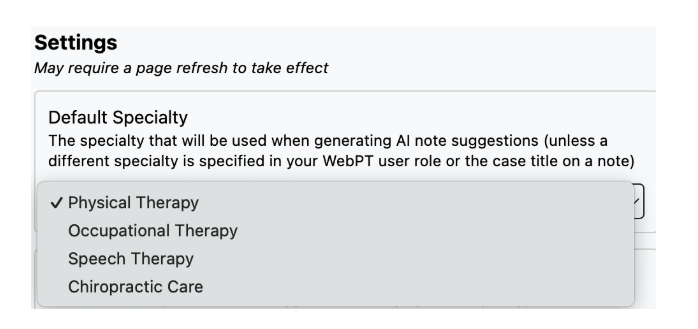
Default Speciality:
This setting allows you to customize Sidekick’s wording based on the type of therapy you practice. When the specialty selected in your EMR aligns with the one specified in your Sidekick settings, you’ll receive documentation phrases that are relevant and tailored to your specific area of practice.
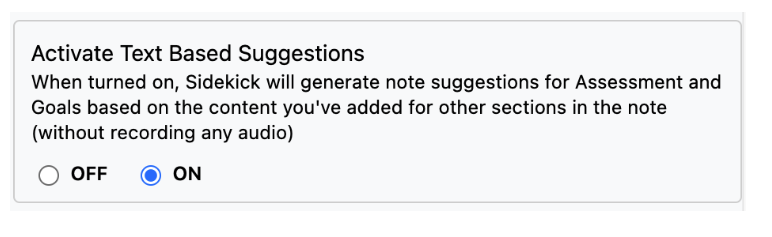
Text Based Suggestions (WebPT SOAP1 only):
Enabling this setting allows Sidekick to review the content of your note and generate additional suggestions aimed at improving compliance. This feature functions independently of the Audio tools—meaning you do not need to use any voice features to benefit from these suggestions. As with all Sidekick-generated content, each suggestion can be edited or removed based on your preferences.
Text Based Suggestions are available by visit type. For example:
- Initial Evaluations: Goals and Assessment
- Follow Up Visits: Assessment
- Discharge Visits: Assessment
- Progress Notes: Not supported
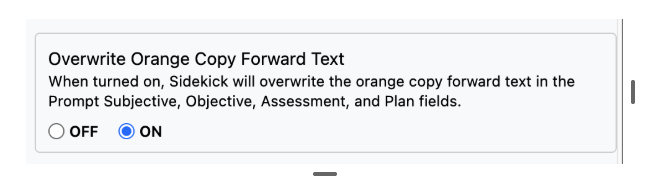
Overwrite Orange Copy Forward Text (Prompt only):
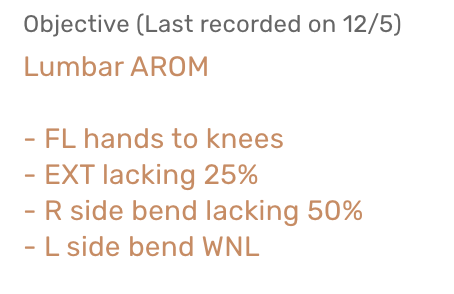
When this setting is enabled, you'll be able to edit or replace the orange "copy forward" text that automatically appears in the text fields within Prompt. This gives you more control over the content you enter and allows for easier customization.
Here is an example of the orange copy forward text:
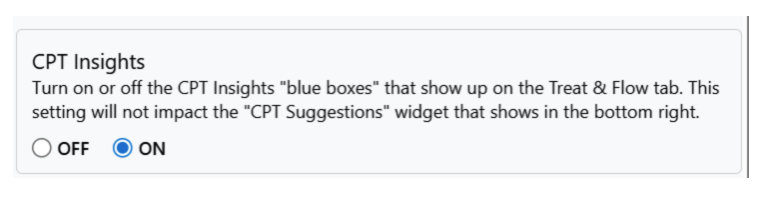
Blue-Box CPT Insights (Prompt Only):
This setting allows you to turn off the Blue-Box CPT Insights that display within the Treat & Flow tab. Disabling the Blue-Box option will not affect the CPT insights that display within the Sidekick widget. A page refresh may be needed after changing this setting for it to take effect.
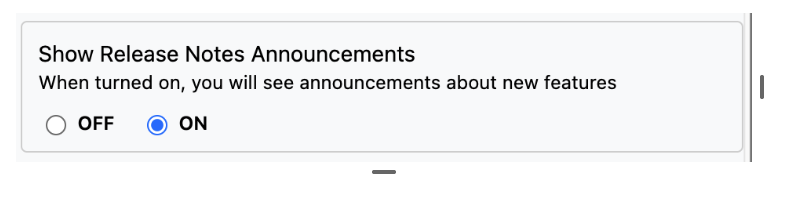
Release Notes Announcements:
This setting enables you to stay informed about new features as they are released within Sidekick.
If you have any questions on how to use the features above, please don’t hesitate to reach out to support.sidekick@prompthealth.com . We’re happy to help!