
Enabling a Microphone in Microsoft Edge

In order to use Sidekick with audio, you will have to have your microphone enabled within your Edge browser. Please follow these instructions if your microphone is not enabled by default:
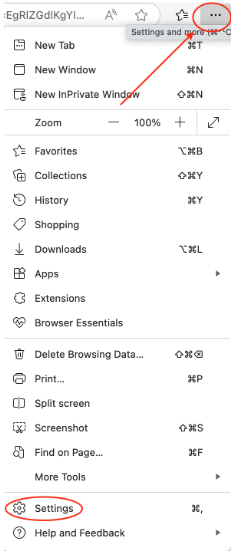
1. Navigate to the three dots in the top right corner of your Edge browser and click on the horizontal ellipse. Click on "Settings".
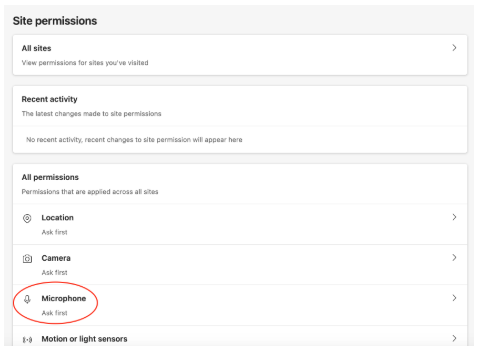
2. Under "Site Permissions", click on "Microphone".
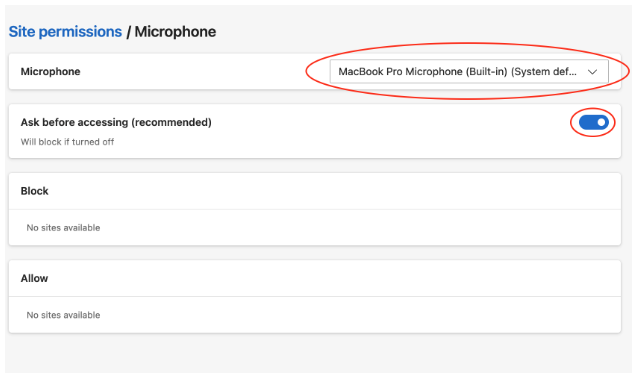
3. Select which Microphone you would like to be the default for Edge and also ensure that the setting for “Ask before accessing” is toggled on:
If you have any questions or need assistance please reach out to our Support Team at support.sidekick@prompthealth.com