
Logging into Sidekick: WebPT

Login Steps
Step 1: Create a Prompt Sidekick Login
- You will receive an email asking you to set your password for your Prompt Sidekick login. Your username will be your email address.
Step 2: Install the Chrome extension into your browser
-
Next you will receive instructions on how to install the Chrome extension (also found here).

- From this webpage, click “Add to Chrome”:

- Follow the on-screen prompts and click “Add extension” to install the extension:
Step 3: Login to your EMR
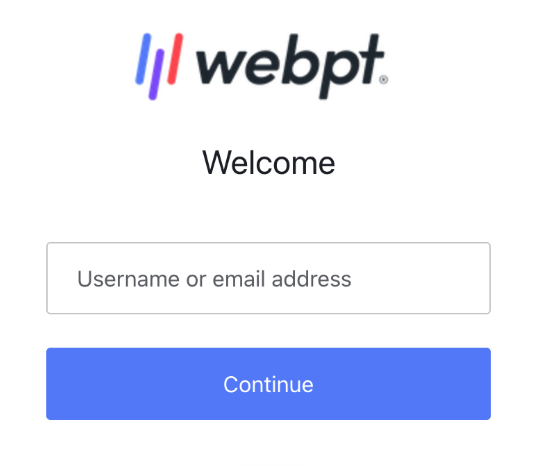
Use your own credentials to login to WebPT:
Step 4: Login to Prompt Sidekick
- On the lower right-hand side of the screen, look for the Sidekick icon. Click on it to log into Sidekick.

Please Note: your Sidekick login credentials (created in step 1) for the Sidekick app are separate from the credentials you use to login to WebPT.
Attention: your browser may attempt to auto-fill your WebPT credentials in the Sidekick. Attempting to login to Sidekick with your EMR credentials will not work.
You must click both checkboxes to accept the terms of use, which will complete the login process.

Step 5: Start using Sidekick!
- Start using Sidekick within WebPT right away.
- If you have any questions concerning best practices with Sidekick, please watch this video, or reach out to support.sidekick@prompthealth.com