
Logging into Sidekick: Raintree (Desktop Version)

Login Steps
Step 1: Create a Sidekick Login
- You will receive an email asking you to set your password for your Sidekick login. Your username will be your email address.
Step 2: Login to your EMR
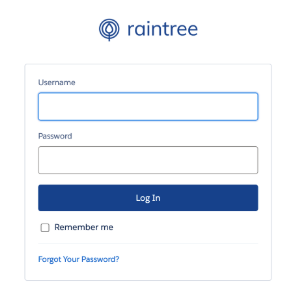
- Use your own credentials to login to Raintree:
Step 3: Open the Sidekick Application
-
In the Search within your Tools bar you will search for “Prompt Sidekick” and then click on it. This will open Prompt Sidekick and you will see the logo in your Desktop.

Step 4: Login to Sidekick
- Click on the Sidekick logo to log into the Sidekick feature.
Please Note: your Sidekick login credentials (created in step 1) for Sidekick are separate from the credentials you use to login to Raintree.
You must click both checkboxes to accept the terms of use, which will complete the login process.

Step 4: Start using Sidekick!
- Once you open your note, the audio buttons will pop up within the Sidekick widget. You can then start using Sidekick within Raintree Desktop right away.
- If you have any questions concerning best practices with Sidekick, please reach out to support.sidekick@prompthealth.com