
How to Install the Sidekick Microsoft Edge Extension

In this article:
Install the Extension
To install the Sidekick Microsoft Edge extension please follow these steps:
-
Download the extension here:
- From this webpage, click “Get Extension”:

- Follow the on-screen prompts and click “Get extension” to install the extension:
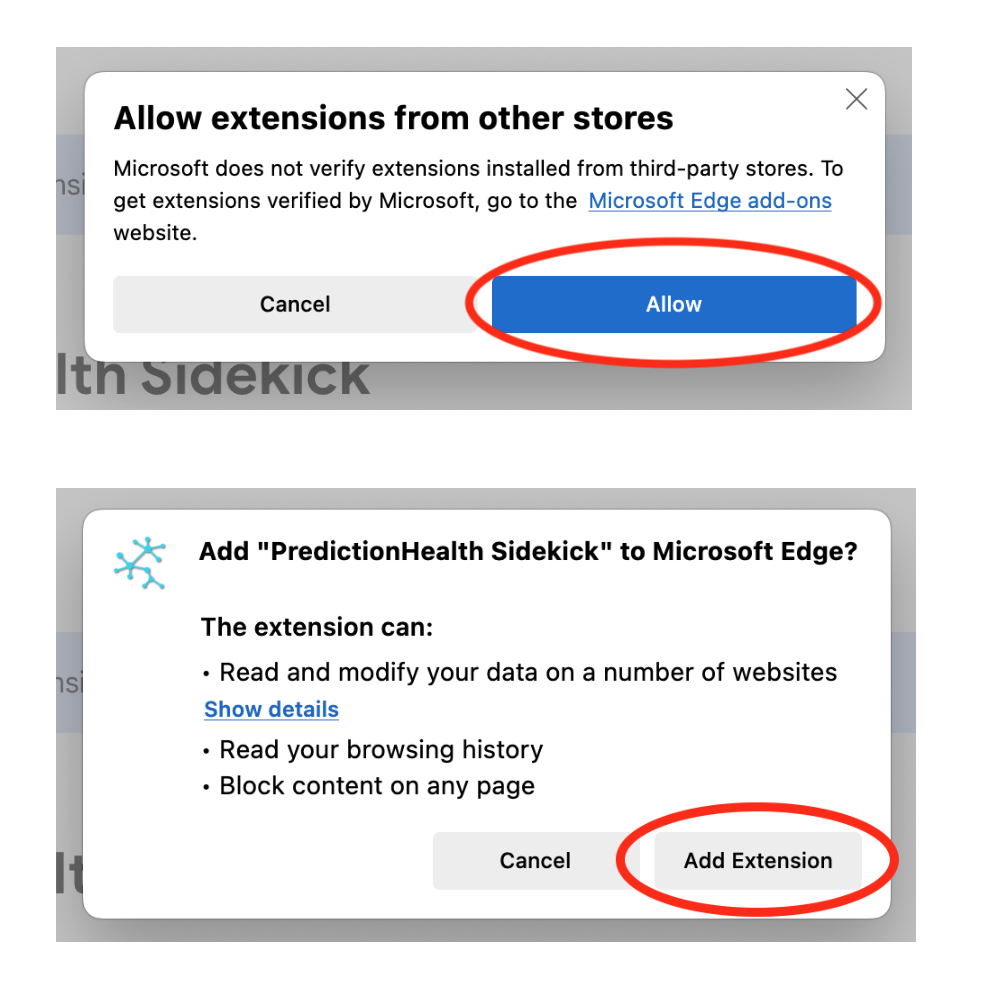
- If you are already logged in to your EMR, you may need to refresh your page for the Sidekick login to appear.
Enable the Extension
When you first install the Sidekick Microsoft Edge extension it should automatically be enabled. If this is not the case follow these steps to ensure that it is properly enabled.
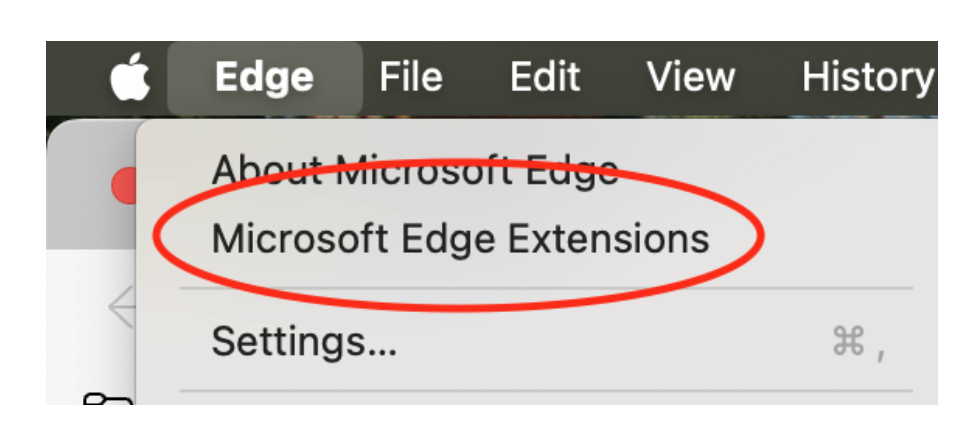
- Navigate to your Microsoft Edge extension window:
- Click “Edge” → “Microsoft Edge Extensions”
-
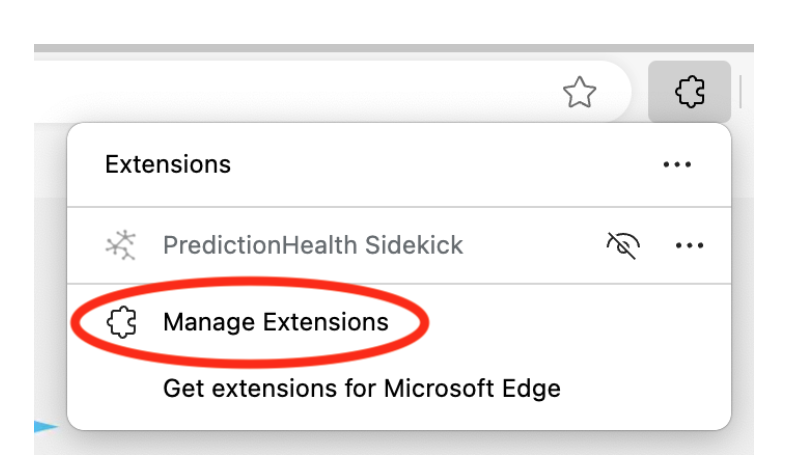
You can also click on the puzzle piece to the right side of your URL bar:

and click on “Manage Extension”
- From the Extensions page, make sure you are clicked into “My Extensions” on the left menu bar:
- Navigate to the Sidekick extension and switch the toggle to the “on” position:

Reinstall the Extension
If the above steps do not work, repeat the process to get back to step “4”. Then, click “Remove” and confirm that you want to remove the extension:
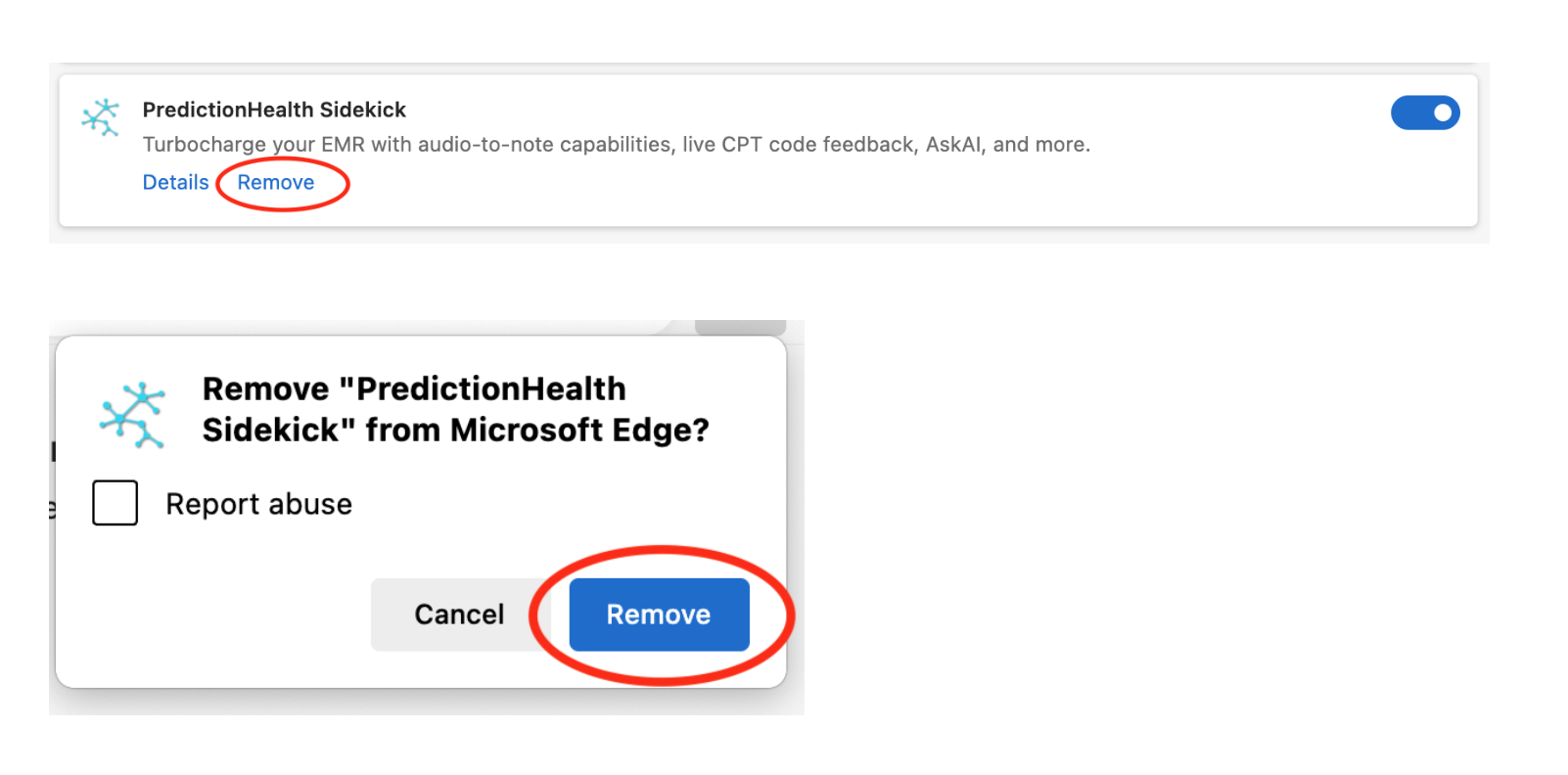
Once the extension is removed, return to the top of this document and follow the steps again to reinstall it.
If you need any assistance please reach out to support.sidekick@prompthealth.com