
Detailed Provider Scores Browse Notes Pop-Out

Beta Release: The Compliance Model is currently in beta as we continue to gather client feedback, refine scoring, and incorporate feedback into ongoing model improvements.
Overview of The Detailed Provider Scores Browse Notes Pop-Out
The Detailed Provider Score Browse Notes Pop-Out allows clinic leaders and auditors to drill down from high-level provider compliance scores directly into individual visit notes. Rather than evaluating documentation in the abstract, this tool provides note-level context, highlights specific sentence mappings, and contrasts top-performing documentation against areas needing improvement.
Key Features & Workflow
-
Contextual Pre-Filtering
When you click on a specific cell within the Detailed Provider Score table, the pop-out opens pre-filtered down to the exact visit type, compliance component, and subcomponent you selected.
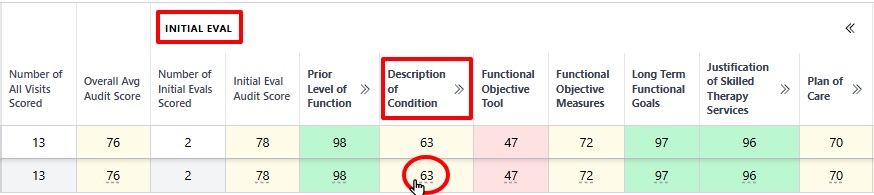
- For example, clicking a score in the Initial Evaluation row under Description of Condition opens the Browse Notes pop-out pre-filtered directly to those parameters.
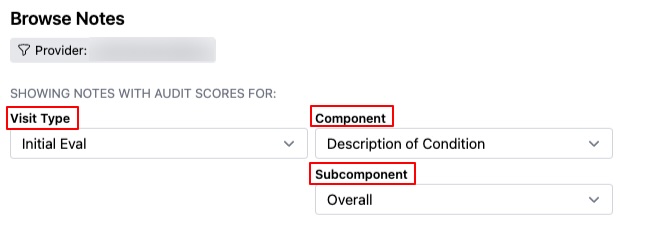
- The top header of the Browse Notes pop-out confirms your active selections displaying the Visit Type (Initial Eval), Component (Description of Condition), and Subcomponent (Overall).
-
Top/Bottom Notes View
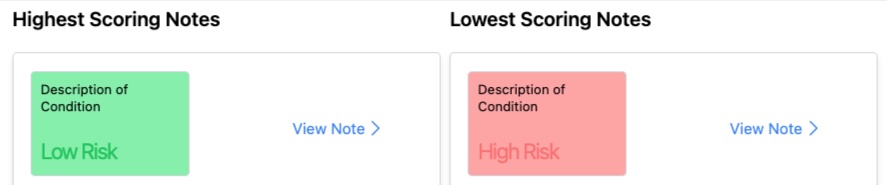
- Below the header, the system automatically highlights the highest-scoring note (best practice) alongside the lowest-scoring note (highest risk) for that provider within the selected timeframe.
- For example, selecting Description of Condition displays the highest-scoring note (Low Risk) directly next to the lowest-scoring note (High Risk) for that exact category.
-
Episode of Care Timeline
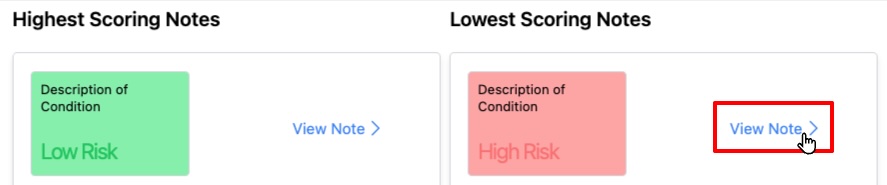
Clicking View Note opens the comprehensive note view.
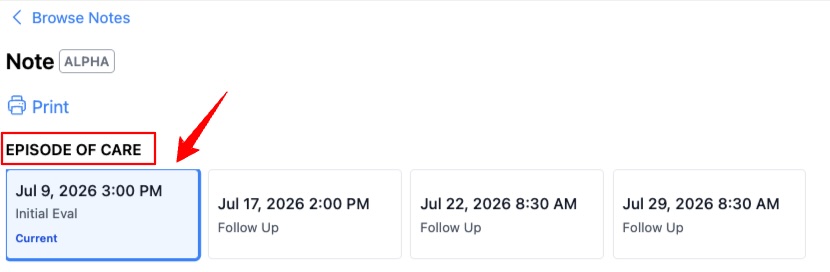
- Across the top of the header, an Episode of Care bar displays all visits associated with that patient.
- The note currently being viewed is highlighted in blue. You can click across different visits, from an Initial Eval to a Follow-Up, to inspect documentation progression across the full episode of care.
-
Overall Audit Score & Risk Display
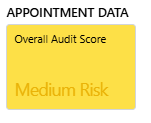
Below the episode of care, the Overall Audit Score tile displays the overall compliance rating for the selected note. Risk indicators are color-coded to provide clear visual feedback at a glance:
- Low Risk: Green
- Medium Risk: Yellow
- High Risk: Red
-
Component & Subcomponent Toggles
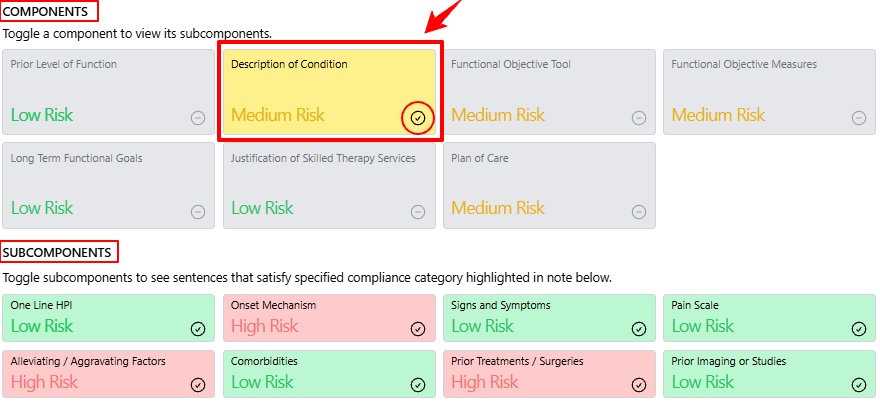
Below the Overall Audit Score tile, you will see interactive tiles for all compliance Components and Subcomponents.
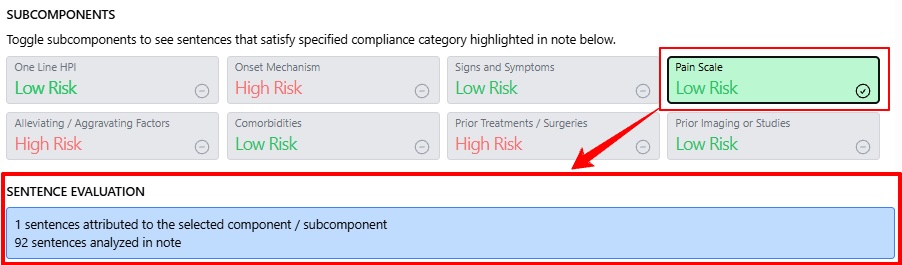
- Selecting a primary component (e.g., Description of Condition) instantly expands its related subcomponents below it, such as One Line HPI, Onset Mechanism, Signs and Symptoms, Pain Scale, and others.
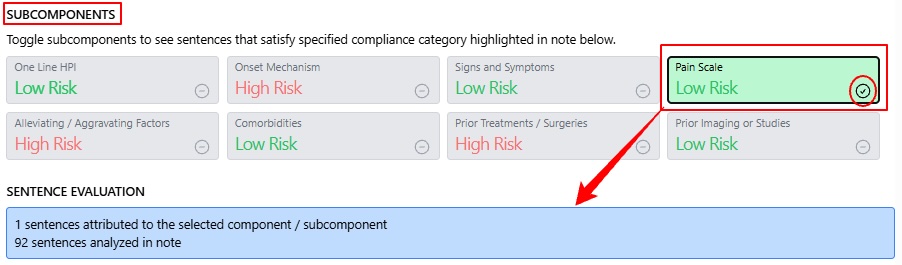
- Selecting a specific subcomponent tile narrows the evaluation directly to that metric. For example, selecting Pain Scale highlights only the documentation contributing to pain measurement.
-
Sentence Evaluation Box
The Sentence Evaluation box provides immediate insight into sentence attribution:
- Attributed Sentences: Displays how many sentences in the note directly satisfy the selected component/subcomponent out of the total sentences analyzed.
- Note: If a category shows High Risk or a low score with 0 sentences attributed, it indicates that a required documentation element (such as Prognosis or Statement of Benefit) was completely left out of the clinician's note.
-
SOAP Note Text & Interactive Sentence Mapping
- Prompt Insight ingests documentation data and structures it into a clean, normalized SOAP format.
- Note: The visual SOAP note layout in Browse Notes will not perfectly match your EMR's native PDF export layout, but all documented text is represented.
- Visual Blue Highlights: When a component or subcomponent is selected, all sentences that contribute to that category are highlighted in blue within the text body. This directly corresponds to the Sentence Evaluation box.
- Hover Mappings: Hovering over any sentence in the note opens an interactive card displaying:
- Copy Forward Tracking: Shows whether the text was copied forward from the previous note, the prior reporting note, or any historical note.
- Compliance Categories: Displays the exact category hierarchy assigned to that sentence.
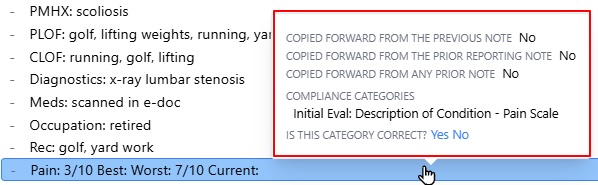
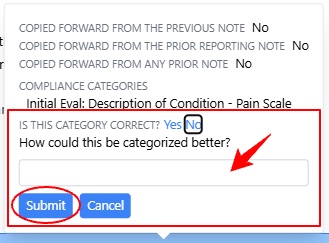
- Category Accuracy Feedback: This pop-up includes an "Is this category correct? Yes / No" prompt. This allows you to validate or correct the system's sentence classification and submit feedback directly within the card.
Beta Release: The Compliance Model is currently in beta as we continue to gather client feedback, refine scoring, and incorporate feedback into ongoing model improvements.
Overview of The Detailed Provider Scores Browse Notes Pop-Out
The Detailed Provider Score Browse Notes Pop-Out allows clinic leaders and auditors to drill down from high-level provider compliance scores directly into individual visit notes. Rather than evaluating documentation in the abstract, this tool provides note-level context, highlights specific sentence mappings, and contrasts top-performing documentation against areas needing improvement.
Key Features & Workflow
-
Contextual Pre-Filtering
When you click on a specific cell within the Detailed Provider Score table, the pop-out opens pre-filtered down to the exact visit type, compliance component, and subcomponent you selected.
- For example, clicking a score in the Initial Evaluation row under Description of Condition opens the Browse Notes pop-out pre-filtered directly to those parameters.
- The top header of the Browse Notes pop-out confirms your active selections displaying the Visit Type (Initial Eval), Component (Description of Condition), and Subcomponent (Overall).
-
Top/Bottom Notes View
- Below the header, the system automatically highlights the highest-scoring note (best practice) alongside the lowest-scoring note (highest risk) for that provider within the selected timeframe.
- For example, selecting Description of Condition displays the highest-scoring note (Low Risk) directly next to the lowest-scoring note (High Risk) for that exact category.
-
Episode of Care Timeline
Clicking View Note opens the comprehensive note view.
- Across the top of the header, an Episode of Care bar displays all visits associated with that patient.
- The note currently being viewed is highlighted in blue. You can click across different visits, from an Initial Eval to a Follow-Up, to inspect documentation progression across the full episode of care.
-
Overall Audit Score & Risk Display
Below the episode of care, the Overall Audit Score tile displays the overall compliance rating for the selected note. Risk indicators are color-coded to provide clear visual feedback at a glance:
- Low Risk: Green
- Medium Risk: Yellow
- High Risk: Red
-
Component & Subcomponent Toggles
Below the Overall Audit Score tile, you will see interactive tiles for all compliance Components and Subcomponents.
- Selecting a primary component (e.g., Description of Condition) instantly expands its related subcomponents below it, such as One Line HPI, Onset Mechanism, Signs and Symptoms, Pain Scale, and others.
- Selecting a specific subcomponent tile narrows the evaluation directly to that metric. For example, selecting Pain Scale highlights only the documentation contributing to pain measurement.
-
Sentence Evaluation Box
The Sentence Evaluation box provides immediate insight into sentence attribution:
- Attributed Sentences: Displays how many sentences in the note directly satisfy the selected component/subcomponent out of the total sentences analyzed.
- Note: If a category shows High Risk or a low score with 0 sentences attributed, it indicates that a required documentation element (such as Prognosis or Statement of Benefit) was completely left out of the clinician's note.
-
SOAP Note Text & Interactive Sentence Mapping
- Prompt Insight ingests documentation data and structures it into a clean, normalized SOAP format.
- Note: The visual SOAP note layout in Browse Notes will not perfectly match your EMR's native PDF export layout, but all documented text is represented.
- Visual Blue Highlights: When a component or subcomponent is selected, all sentences that contribute to that category are highlighted in blue within the text body. This directly corresponds to the Sentence Evaluation box.
- Hover Mappings: Hovering over any sentence in the note opens an interactive card displaying:
- Copy Forward Tracking: Shows whether the text was copied forward from the previous note, the prior reporting note, or any historical note.
- Compliance Categories: Displays the exact category hierarchy assigned to that sentence.
- Category Accuracy Feedback: This pop-up includes an "Is this category correct? Yes / No" prompt. This allows you to validate or correct the system's sentence classification and submit feedback directly within the card.
Beta Release: The Compliance Model is currently in beta as we continue to gather client feedback, refine scoring, and incorporate feedback into ongoing model improvements.
Overview of The Detailed Provider Scores Browse Notes Pop-Out
The Detailed Provider Score Browse Notes Pop-Out allows clinic leaders and auditors to drill down from high-level provider compliance scores directly into individual visit notes. Rather than evaluating documentation in the abstract, this tool provides note-level context, highlights specific sentence mappings, and contrasts top-performing documentation against areas needing improvement.
Key Features & Workflow
-
Contextual Pre-Filtering
When you click on a specific cell within the Detailed Provider Score table, the pop-out opens pre-filtered down to the exact visit type, compliance component, and subcomponent you selected.
- For example, clicking a score in the Initial Evaluation row under Description of Condition opens the Browse Notes pop-out pre-filtered directly to those parameters.
- The top header of the Browse Notes pop-out confirms your active selections displaying the Visit Type (Initial Eval), Component (Description of Condition), and Subcomponent (Overall).
-
Top/Bottom Notes View
- Below the header, the system automatically highlights the highest-scoring note (best practice) alongside the lowest-scoring note (highest risk) for that provider within the selected timeframe.
- For example, selecting Description of Condition displays the highest-scoring note (Low Risk) directly next to the lowest-scoring note (High Risk) for that exact category.
-
Episode of Care Timeline
Clicking View Note opens the comprehensive note view.
- Across the top of the header, an Episode of Care bar displays all visits associated with that patient.
- The note currently being viewed is highlighted in blue. You can click across different visits, from an Initial Eval to a Follow-Up, to inspect documentation progression across the full episode of care.
-
Overall Audit Score & Risk Display
Below the episode of care, the Overall Audit Score tile displays the overall compliance rating for the selected note. Risk indicators are color-coded to provide clear visual feedback at a glance:
- Low Risk: Green
- Medium Risk: Yellow
- High Risk: Red
-
Component & Subcomponent Toggles
Below the Overall Audit Score tile, you will see interactive tiles for all compliance Components and Subcomponents.
- Selecting a primary component (e.g., Description of Condition) instantly expands its related subcomponents below it, such as One Line HPI, Onset Mechanism, Signs and Symptoms, Pain Scale, and others.
- Selecting a specific subcomponent tile narrows the evaluation directly to that metric. For example, selecting Pain Scale highlights only the documentation contributing to pain measurement.
-
Sentence Evaluation Box
The Sentence Evaluation box provides immediate insight into sentence attribution:
- Attributed Sentences: Displays how many sentences in the note directly satisfy the selected component/subcomponent out of the total sentences analyzed.
- Note: If a category shows High Risk or a low score with 0 sentences attributed, it indicates that a required documentation element (such as Prognosis or Statement of Benefit) was completely left out of the clinician's note.
-
SOAP Note Text & Interactive Sentence Mapping
- Prompt Insight ingests documentation data and structures it into a clean, normalized SOAP format.
- Note: The visual SOAP note layout in Browse Notes will not perfectly match your EMR's native PDF export layout, but all documented text is represented.
- Visual Blue Highlights: When a component or subcomponent is selected, all sentences that contribute to that category are highlighted in blue within the text body. This directly corresponds to the Sentence Evaluation box.
- Hover Mappings: Hovering over any sentence in the note opens an interactive card displaying:
- Copy Forward Tracking: Shows whether the text was copied forward from the previous note, the prior reporting note, or any historical note.
- Compliance Categories: Displays the exact category hierarchy assigned to that sentence.
- Category Accuracy Feedback: This pop-up includes an "Is this category correct? Yes / No" prompt. This allows you to validate or correct the system's sentence classification and submit feedback directly within the card.